
Users and Permissions
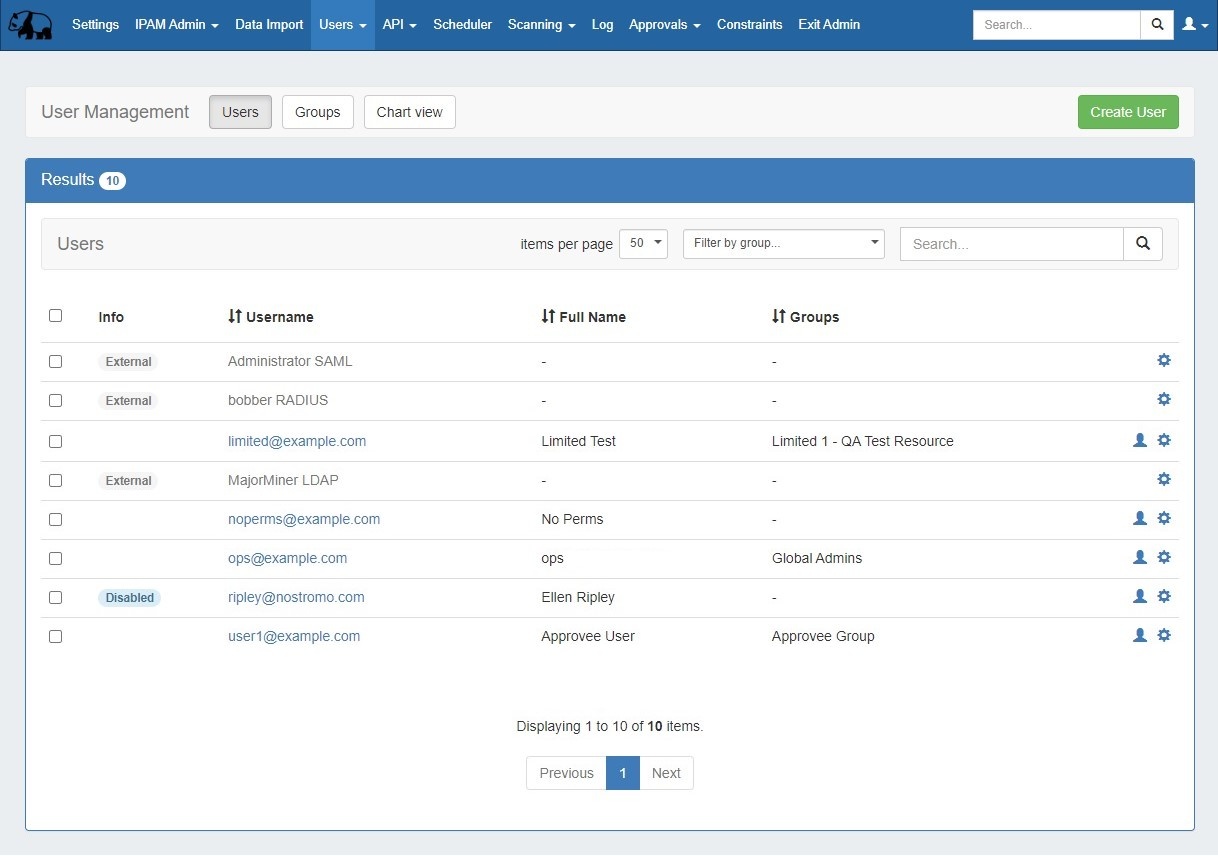
Users & Permissions is accessed from the Admin screen under the Users tab. Here, you will find tools for adding and managing permissions groups, users, and running queries for verifying a user's specific permissions.
...
- Internal Users and Roles (Admins, Read Only, etc.)
- Partners related to multiple specific Resources/Accounts
- Customers/Departments with limited view to only their respective Resources/Accounts
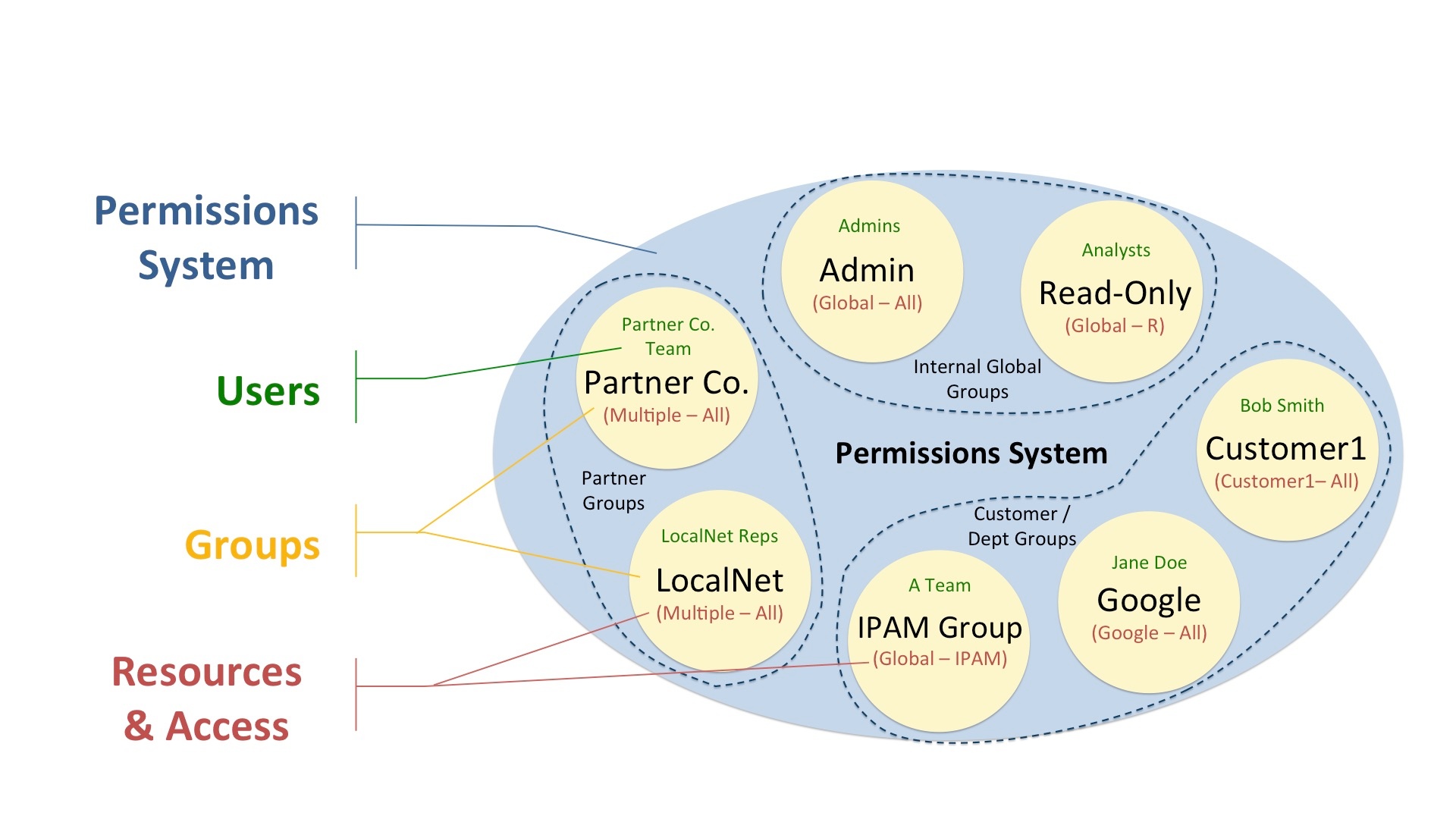
In this diagram, we have created groups for each of those scenarios – we have internal groups, Partner Groups, and Customer groups. Each of these groups has access to different resources, permission levels, and users assigned to them.
The components of the Permissions System include:
- Users: A User is a single login account that accesses ProVision. Users are assigned to Groups.
- Groups: A Group is a set of permission conditions that apply to selected Users. Allowed modules, resources and access levels (C/R/U/D permissions) are set inside the Group.
- Resources & Access: Inside a Group, Resource access may be set to Global TLR (applies to all Resources), or to the specific Resource level (applies to only the selected Resources). For each Resource selected, access permissions can be set with C/R/U/D permissions under each module area (IPAM, DNS, Resource, Peering).
As a whole, this makes up the ProVision permissions system. The Permissions system allows you to fine-tune access to resource data to be as detailed as you need.
...
When you see a reference to a "TLR" - that is a "Top Level Resource". This Is the primary Resource under which all other resources fall under.
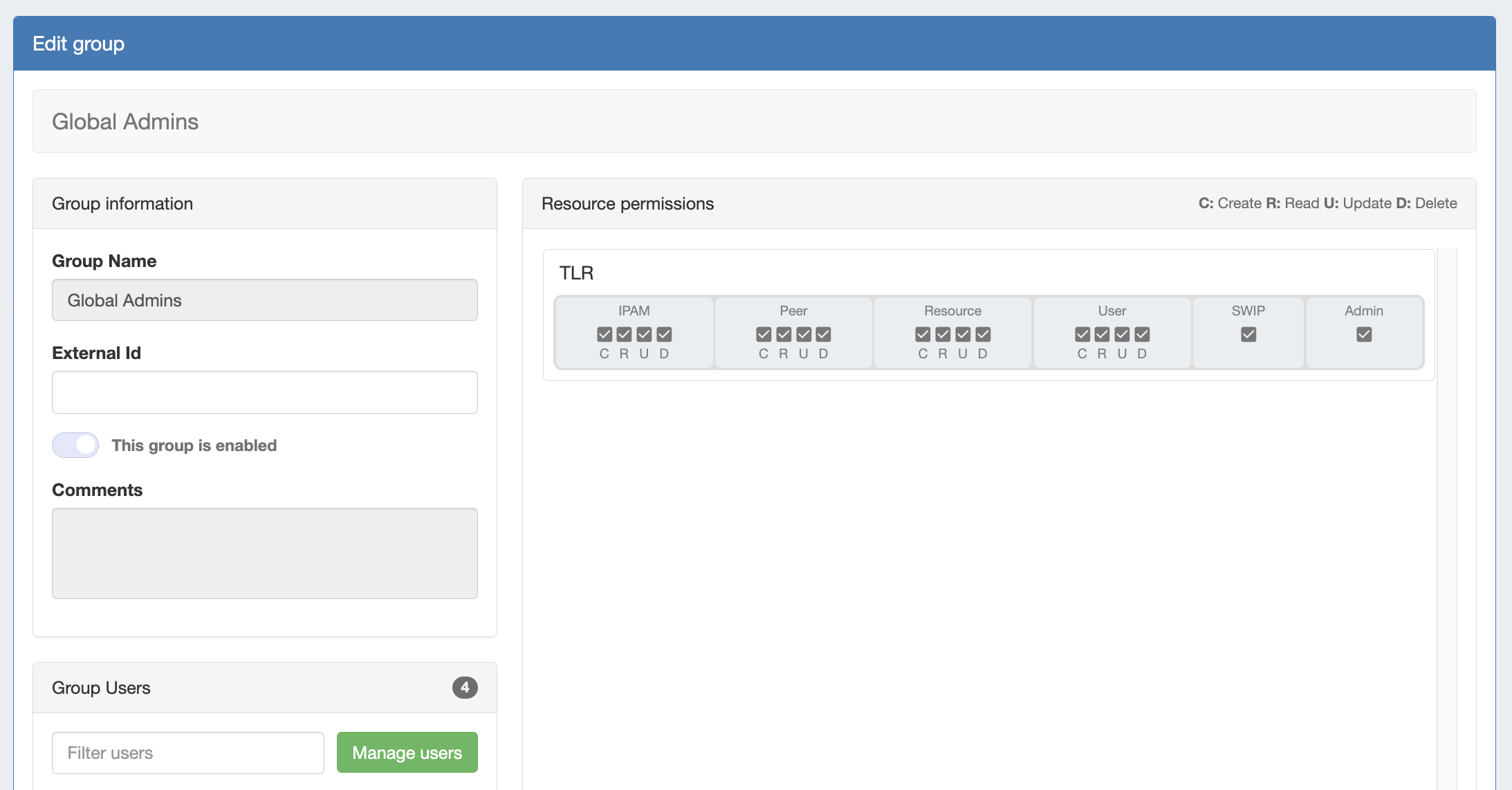
By default, all ProVision instances include a "Global Admins" group with full "TLR" permissions, and a "Global Read Only" group with only read permissions on "TLR".
...
An administrator can also set respective module and C/R/U/D permissions for a given Resource (single or multiple). These permissions fall under Groups.
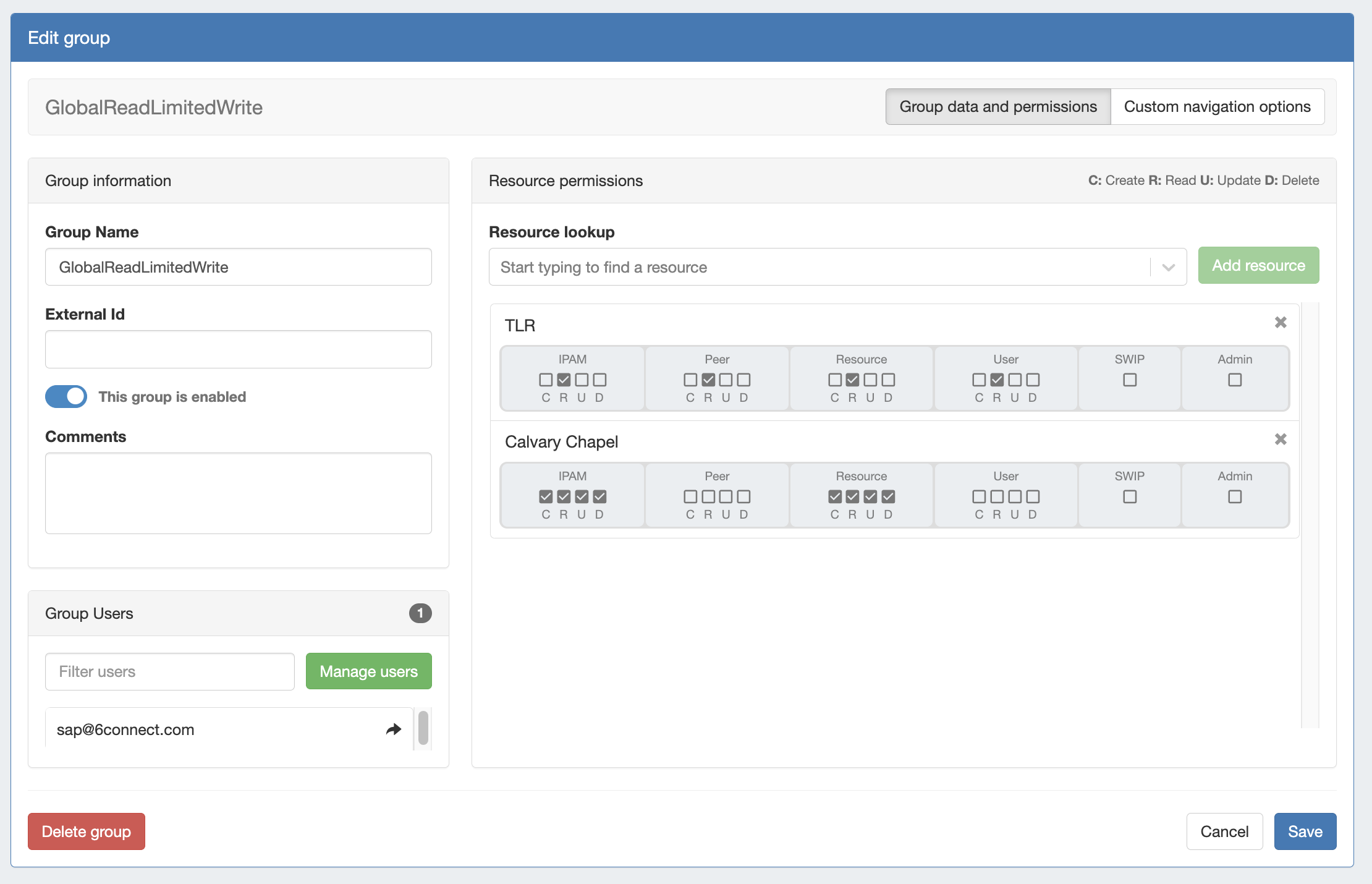
A Group is configured for the selected Resource permissions, and User accounts are associated with the Group.
...
See Resource Permissions for more details on configuring these elements.
Permission Shortcut Button ("Perms Button")
In DNS and DHCP, a shortcut permissions button ("Perms") is available on a per-item level, accessible only to Admin users.
...
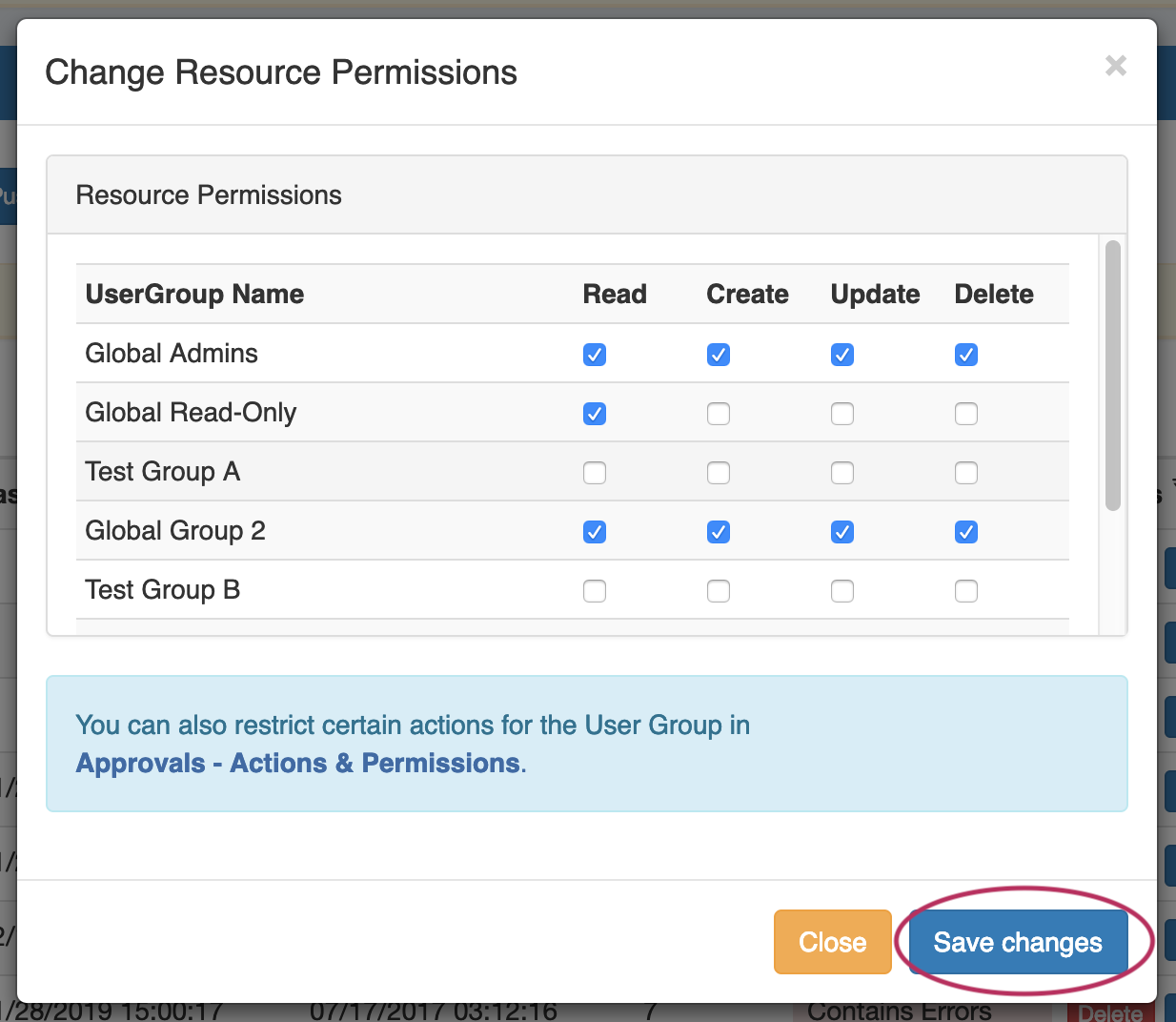
To open the Change Resource Permissions module, click on the "Perms" Button for any DNS item.

Edit the CRUD permissions for any user group by clicking the checkbox for the desired group and permission type.
When done, click "Save Changes". The permission changes will be also be reflected in the Admin User tab Group settings.
...
Additional Information:
| Children Display |
|---|