Peering Settings
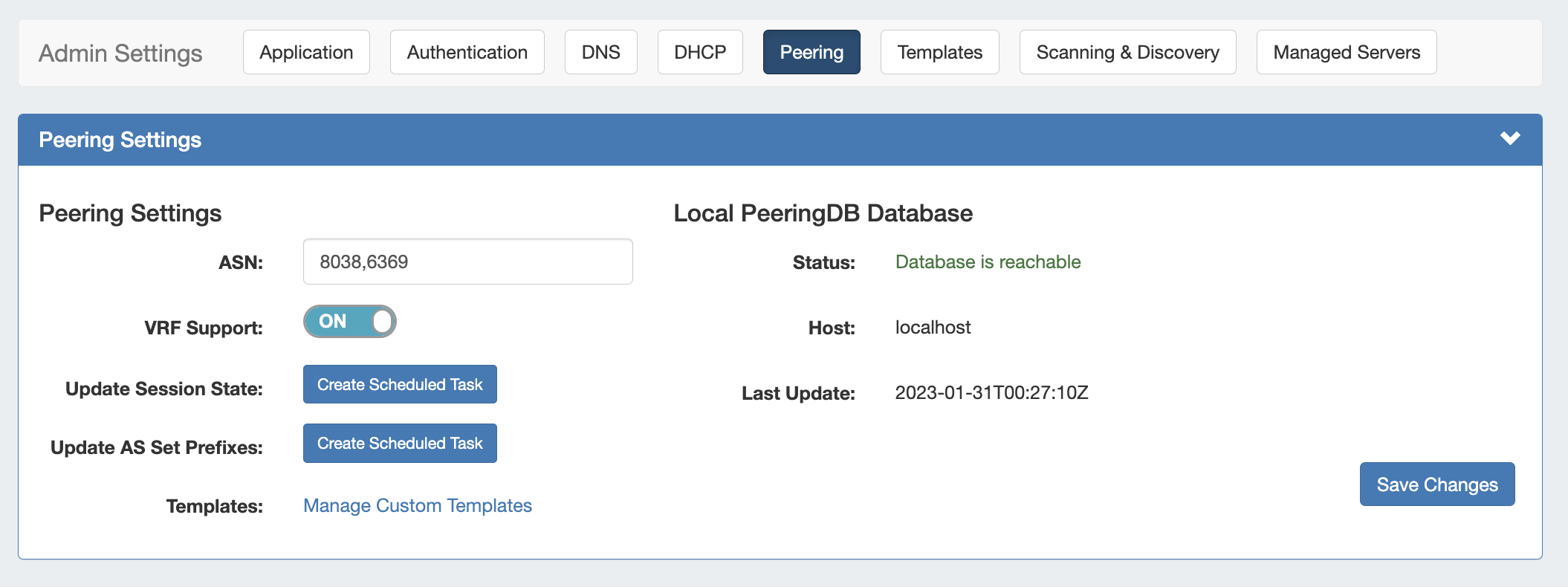
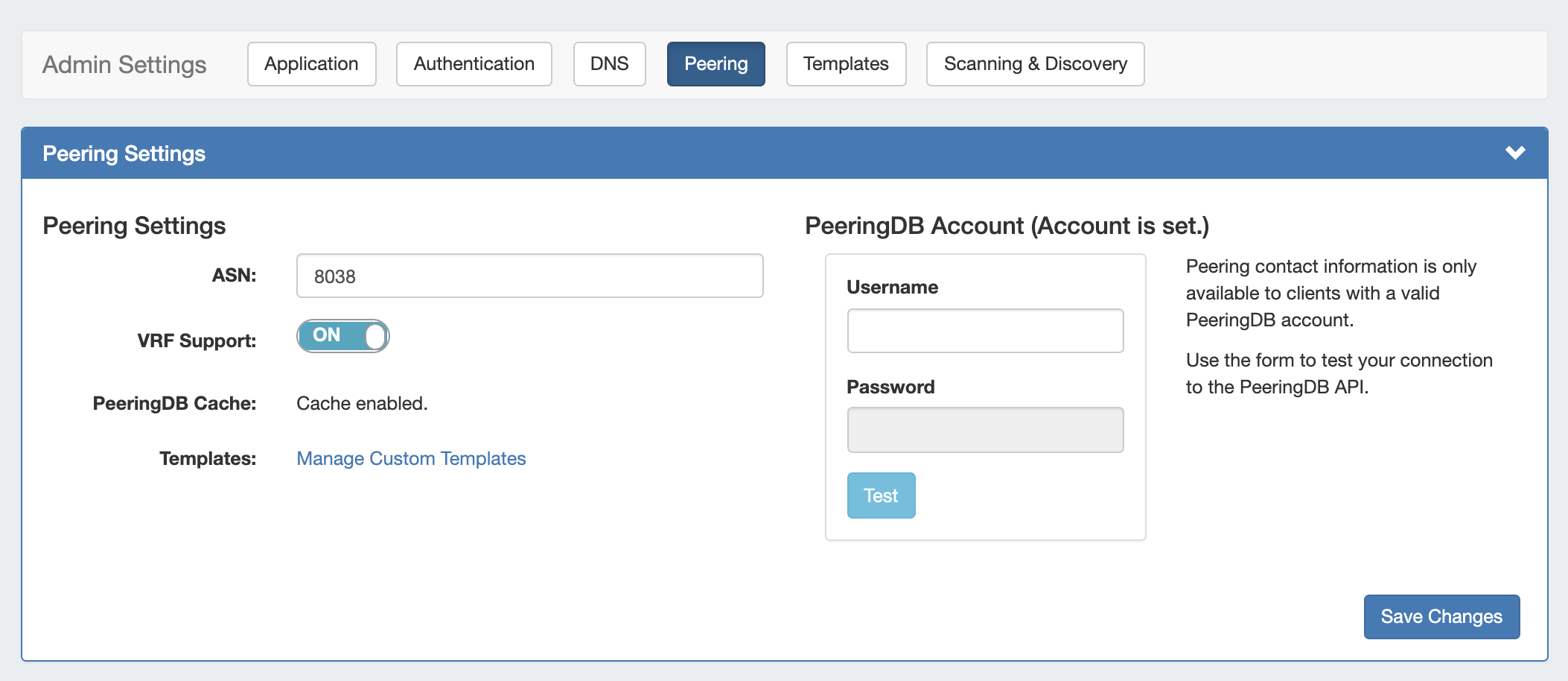
Peering Settings are accessed by clicking the "Peering" sub-tab at the top of the Admin Settings page.
Table of Contents
Peering Settings
The available Peering settings are as follows:
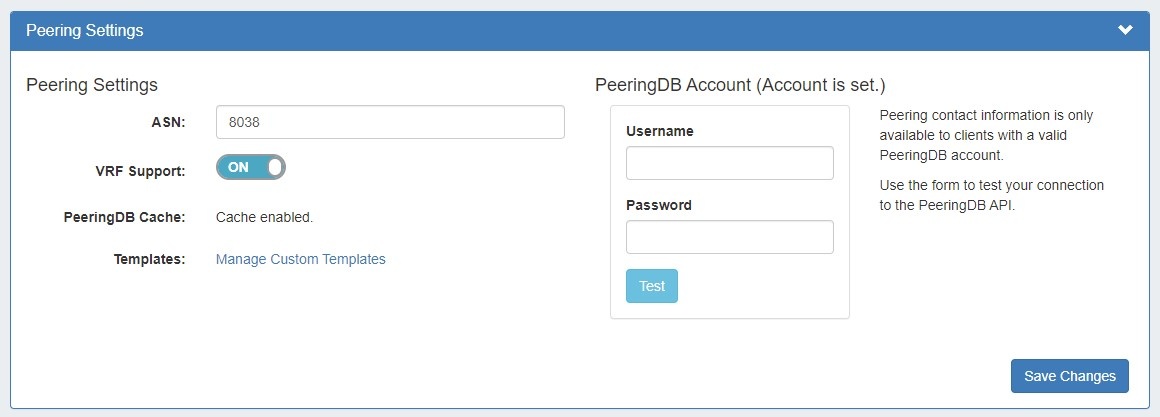
ASN : Enter the ASN(s) that will be used for Peering, or may leave blank. Separate multiple ASNs with a comma.
VRF Support: Check to enable adding the VRF gadget to the router Section. Currently, only supports Cisco routers.
...
PeeringDB Cache: Displays a status notification to show whether Peering DB cache is enabled or disabled.
Templates: Create or manage custom Peering Templates.
PeeringDB Account
...
: Click the "change" link to input PeeringDB account credentials. PeeringDB account information is required to retrieve and update
...
peering information.
...
Enter a valid PeeringDB
...
When you are done making edits to Peering Settings, click "Save Changes" in the lower right corner of the settings module.
...
account Username and Password. When done, click the "Test" button to verify the account, and save.
Additional Information
For additional information on working in Peering, see the following pages:
...