Peering Settings
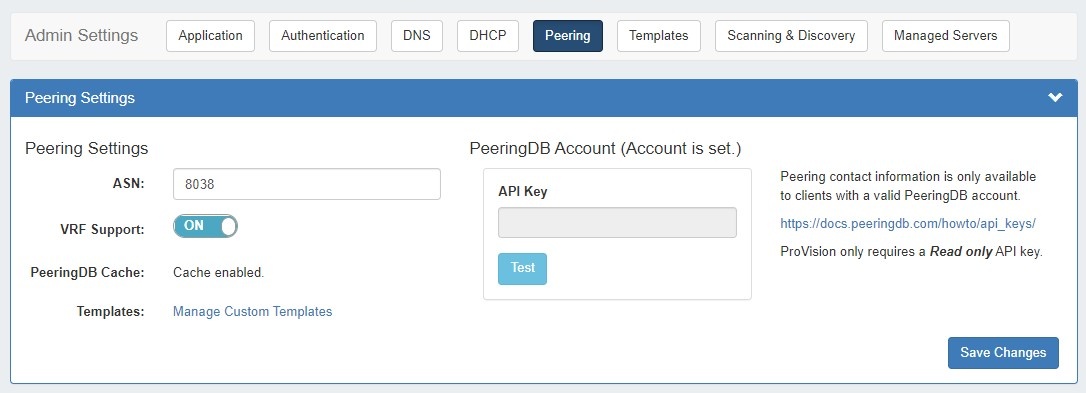
Peering Settings are accessed by clicking the "Peering" sub-tab at the top of the Admin Settings page.
Table of Contents
Peering Settings
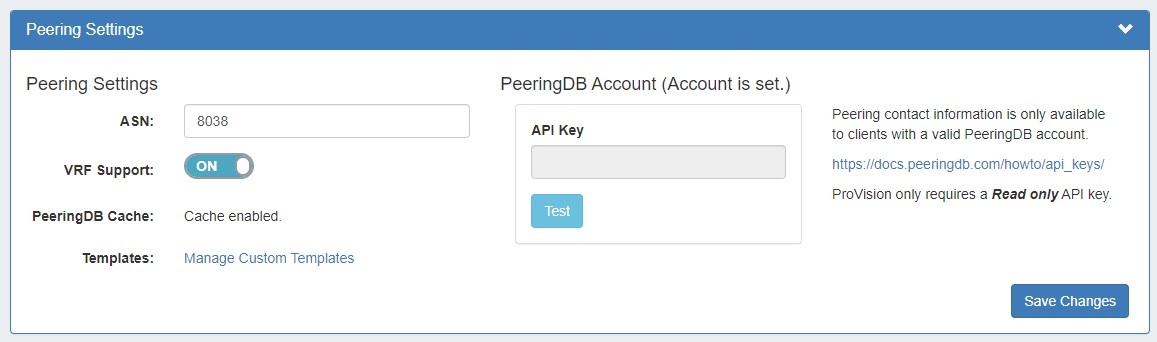
ASN : Enter the ASN(s) that will be used for Peering, or may leave blank. Separate multiple ASNs with a comma.
VRF Support: Check to enable adding the VRF gadget to the router Section. Currently, only supports Cisco routers.
PeeringDB Cache: Displays a status notification to show whether Peering DB cache is enabled or disabled.
Templates: Create or manage custom Peering Templates.
PeeringDB Account: PeeringDB account information is required to retrieve and update peering information. Enter a valid PeeringDB API Key. When done, click the "Test" button to verify the account, and save.
| Note |
|---|
ProVision only requires a Read Only API Key. For information on PeeringDB API keys, please refer to: https://docs.peeringdb.com/howto/api_keys/ |
Additional Information
For additional information on working in Peering, see the following pages: